Glisso for directors
Class seats give you a dashboard for your class. You set assignments, see how long each student practices, listen to the takes they send in, and run leaderboards for the class. Every student in the class also gets Virtuoso, with nothing for them or their family to pay.
Seats are $19 per student a year, for 10 students or more. See Buying seats.
Your class
My Class lists every student with the instrument they play, how long they practiced today, a bar for each of the last 7 days, and when they last practiced. The total for the whole class is under the list.
You set each student's instrument here. Glisso writes every assignment out for that instrument, so a trumpet, an alto sax and a French horn each read their own part in their own key from the same piece.
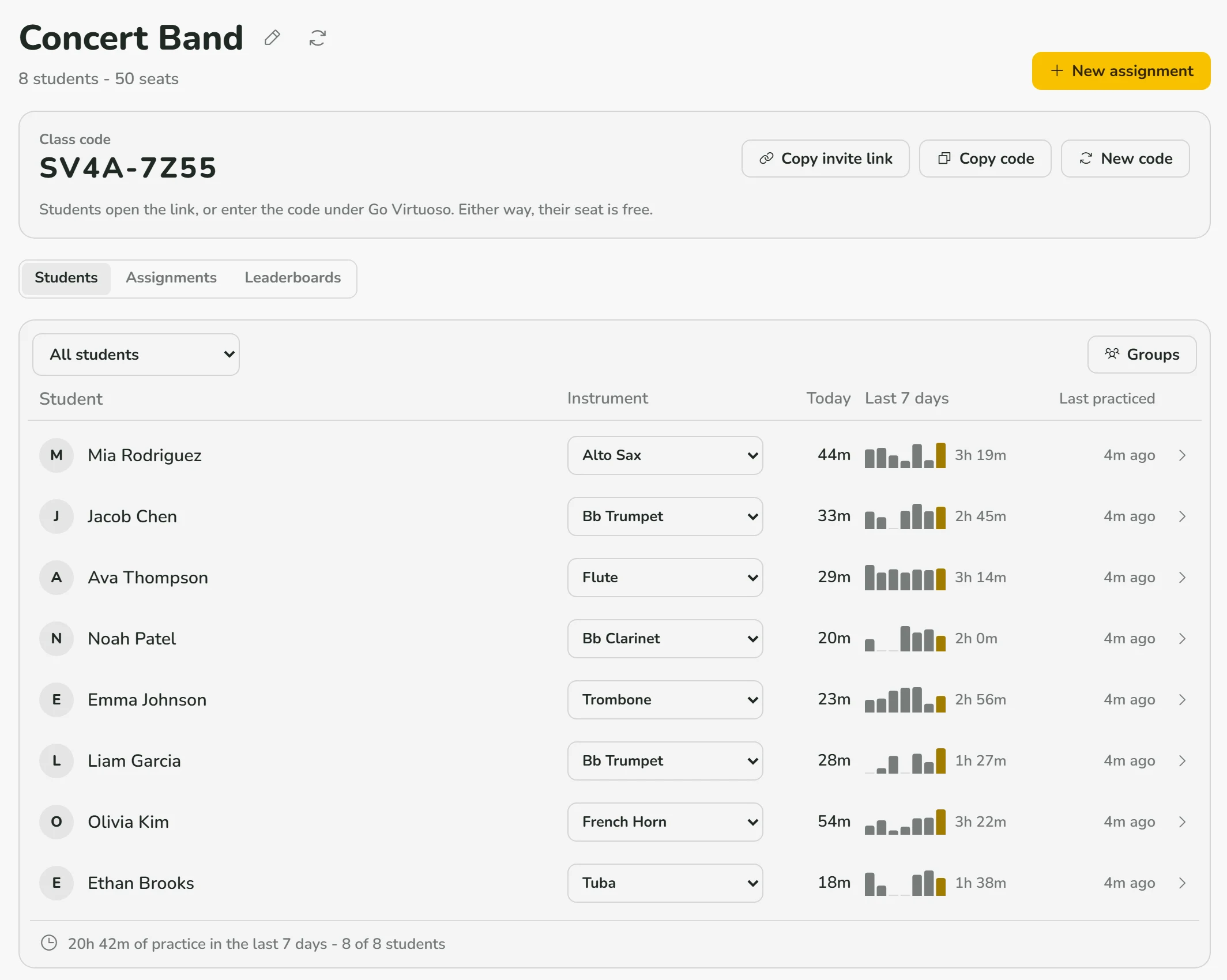
Students join with a link or a code. Copy the invite link and post it wherever you reach your students, or read the code out in rehearsal and have them type it in. If a code gets passed around, make a new one; students already in the class stay in it.
Assignments
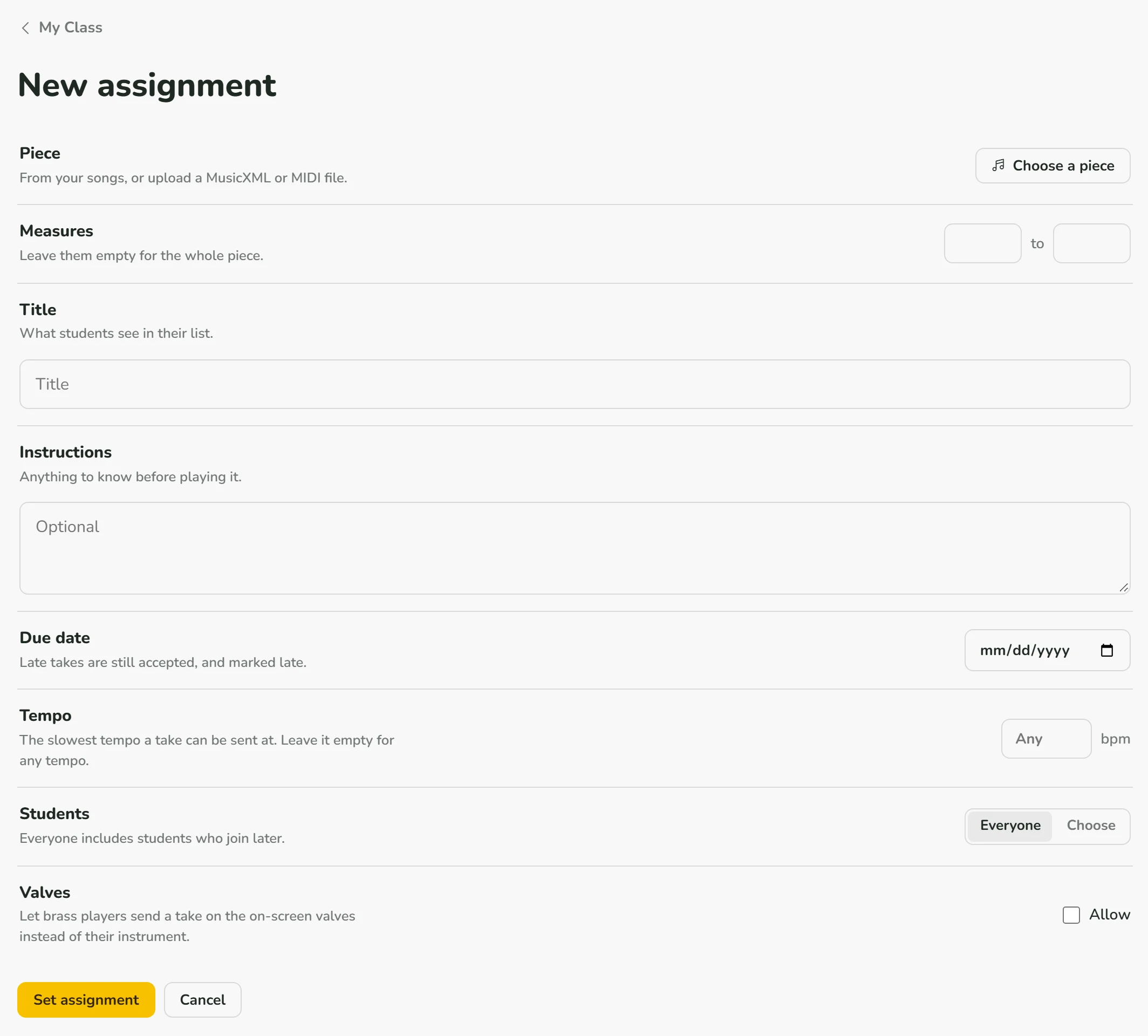
An assignment is a piece for your students to practice and send back. Choose a piece from your song library, or upload a MusicXML or MIDI file. Then set:
- Measures to play, or the whole piece.
- Title and instructions, shown to students before they play.
- Due date. Takes sent after it are still accepted and marked late.
- Tempo: the slowest tempo a take can be sent at.
- Students: everyone (including students who join later), or the students you pick.
- Valves: whether brass players may send a take played on the on-screen valves instead of their instrument.
Students find the assignment on their class page and press Practice. It opens in Music mode, on their instrument, at the measures you set. They can play it as many times as they like; when a take is good enough they press Submit on its result page. A take can only be sent if it covers the measures you set at your tempo or faster.
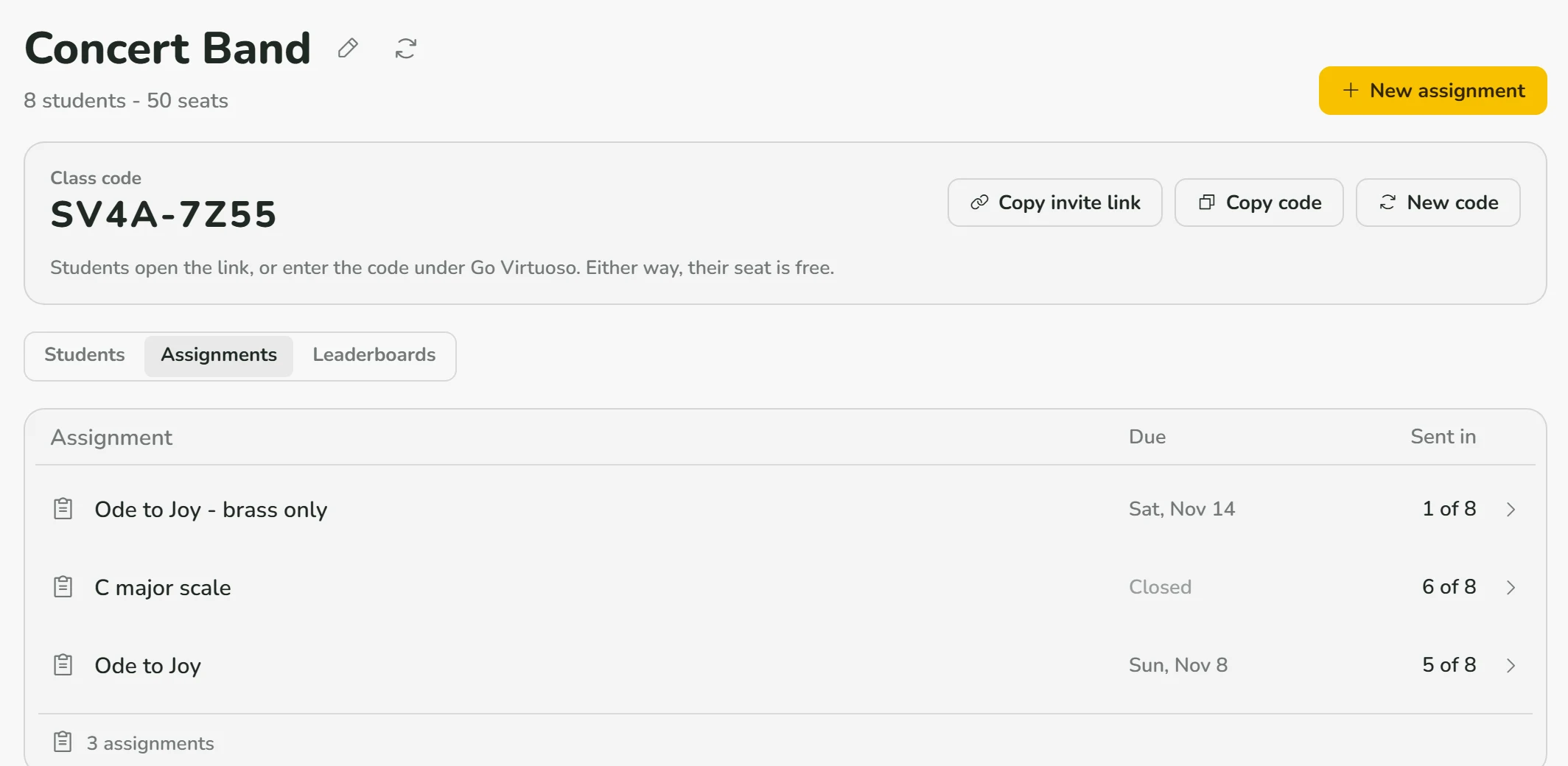
The Assignments tab shows how many students have sent each one in. You can edit an assignment, close it to new takes and open it again later, or delete it.
Full scores
Upload a full band or orchestra score as one piece, and each student gets the part for their instrument. When there is more than one part for an instrument, such as 1st and 2nd trumpet, Glisso gives each student the chair they had in your last full score, and you can change any student's part before you set it. Students who join later get the part for their instrument.
Listening to what they send
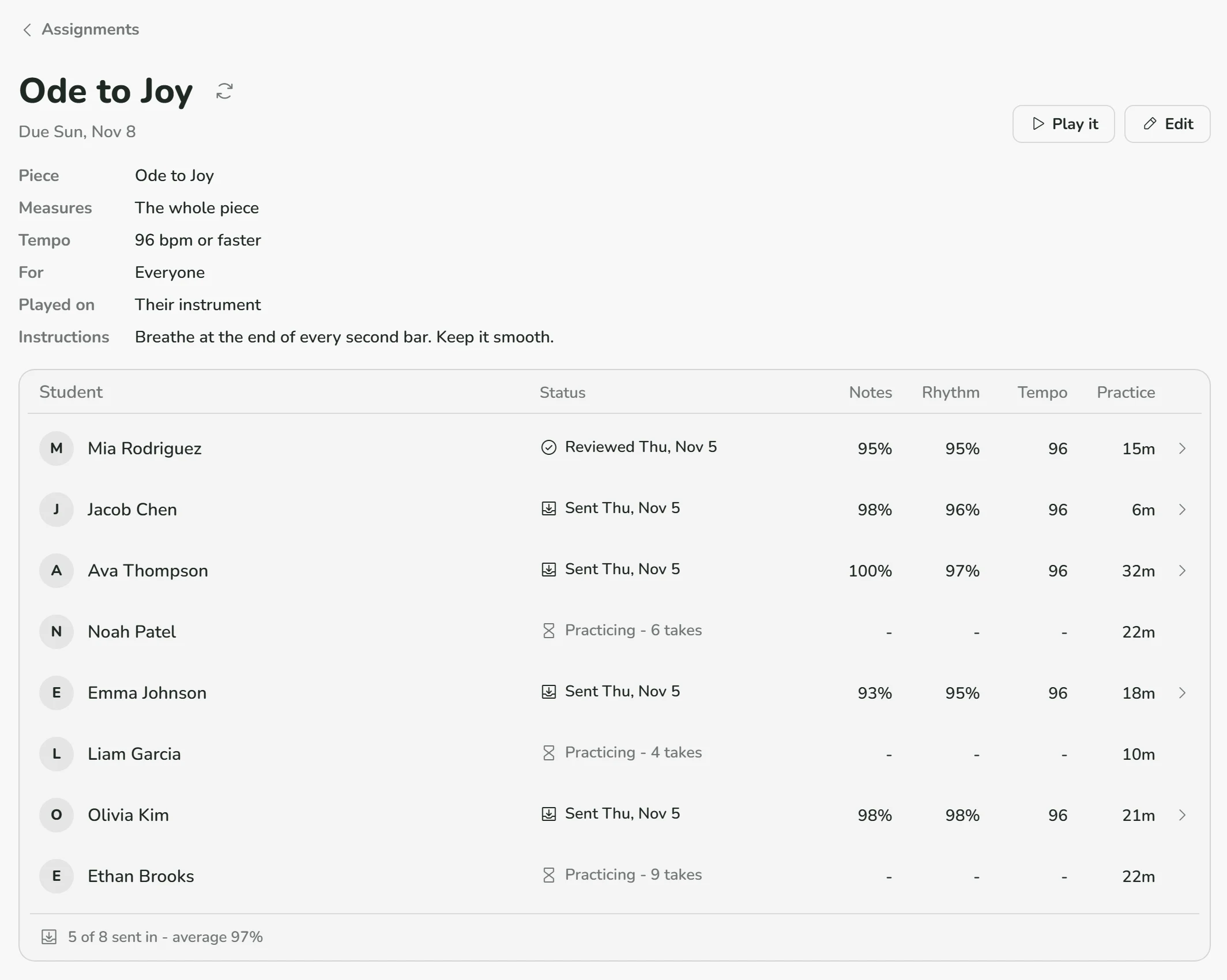
An assignment's page lists every student it was set for: who has sent a take, who is still practicing and how many takes they have played, and how long each student has spent on the piece. Sent takes show their notes and rhythm scores and the tempo they were played at.
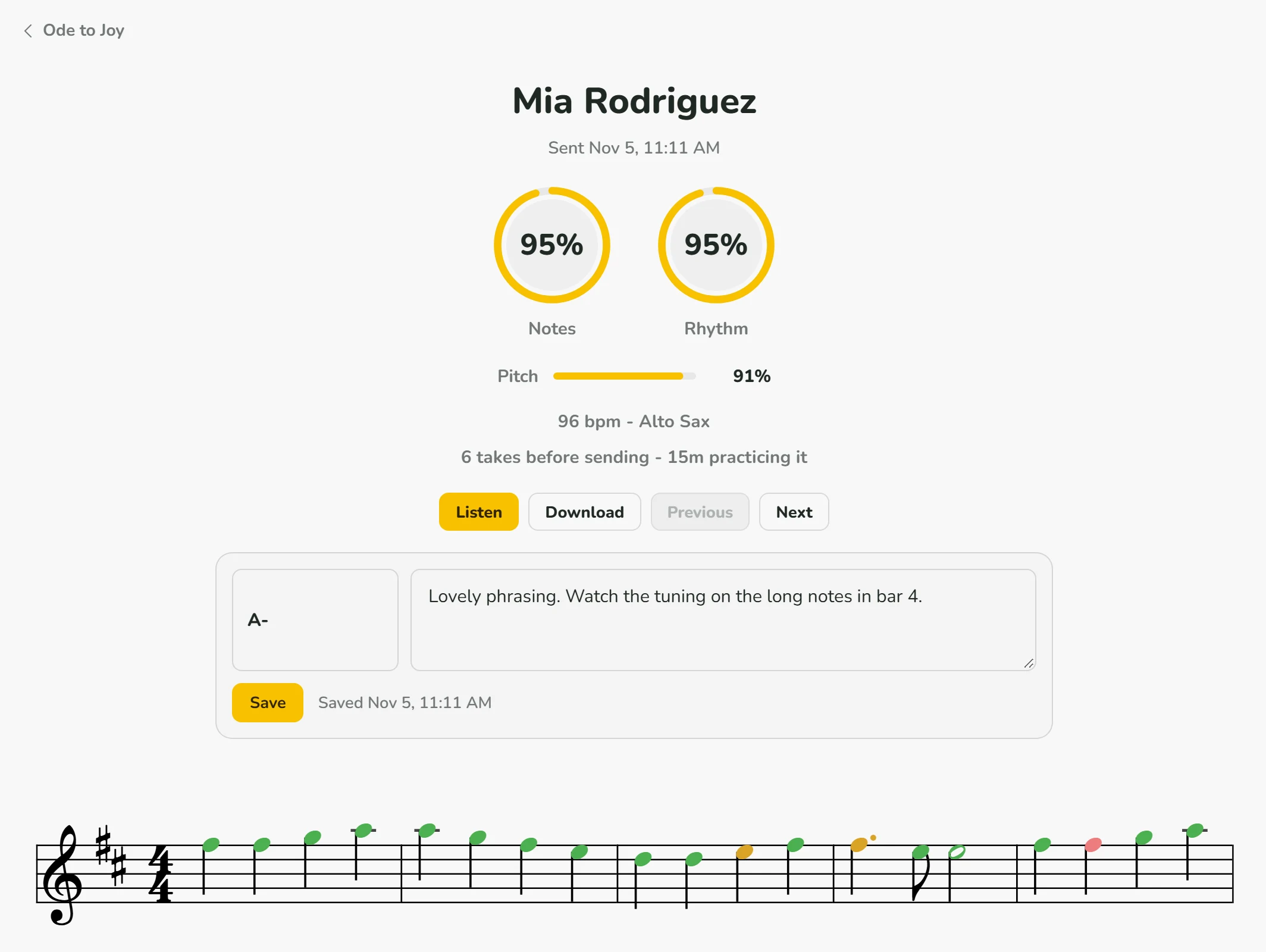
Open a take to hear it. You see the same result page the student saw: the notes and rhythm scores, pitch, tempo and instrument, how many takes they played before sending it, and the music with every note coloured by how it was played. Press Listen to play the recording while the music follows along, or download it. Write a grade and a note; the student sees both on their class page. Previous and Next move through the class without going back to the list.
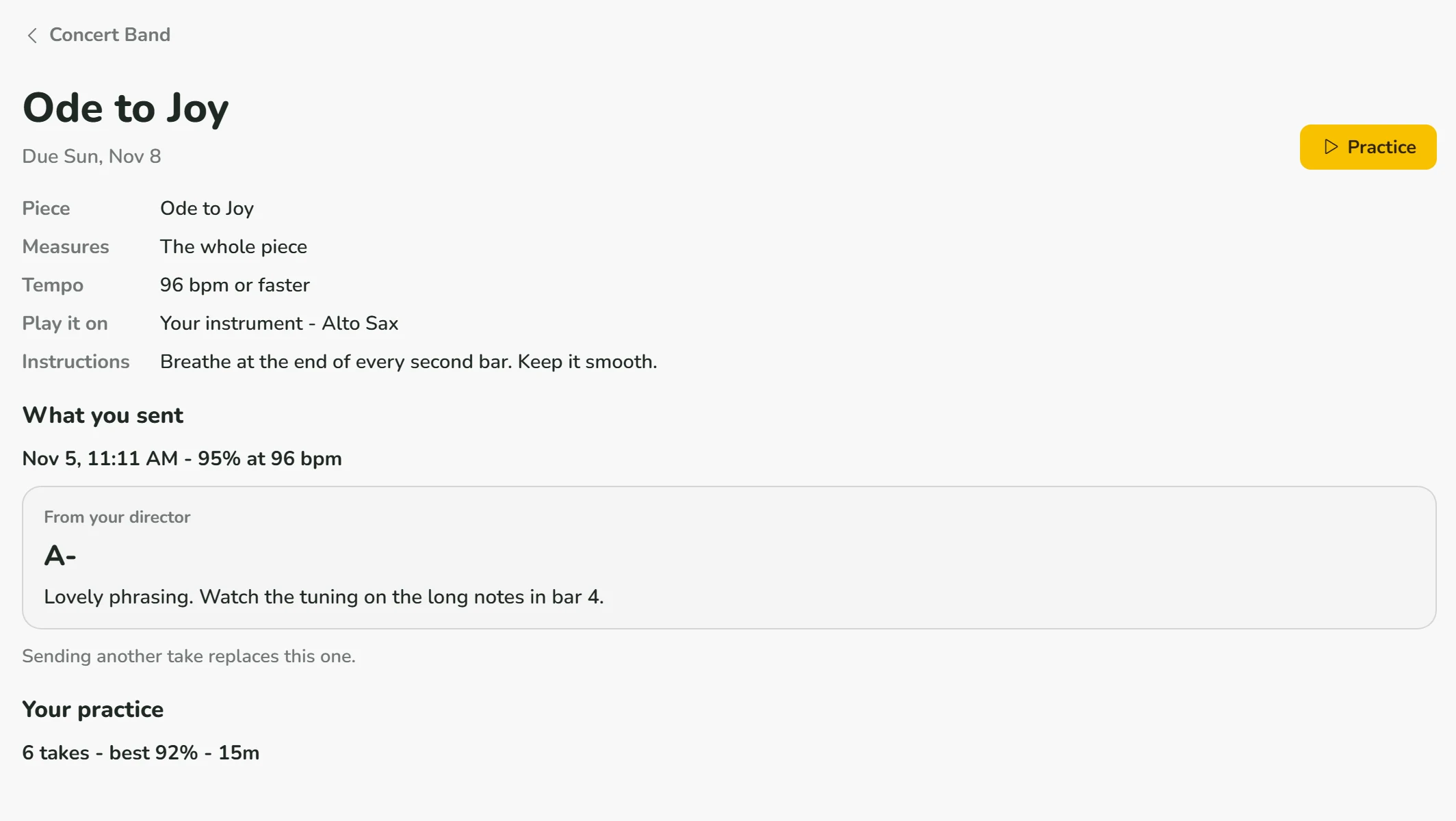
A student who sends another take replaces the one you have, and your reply is cleared so you can listen again.
Each student's practice
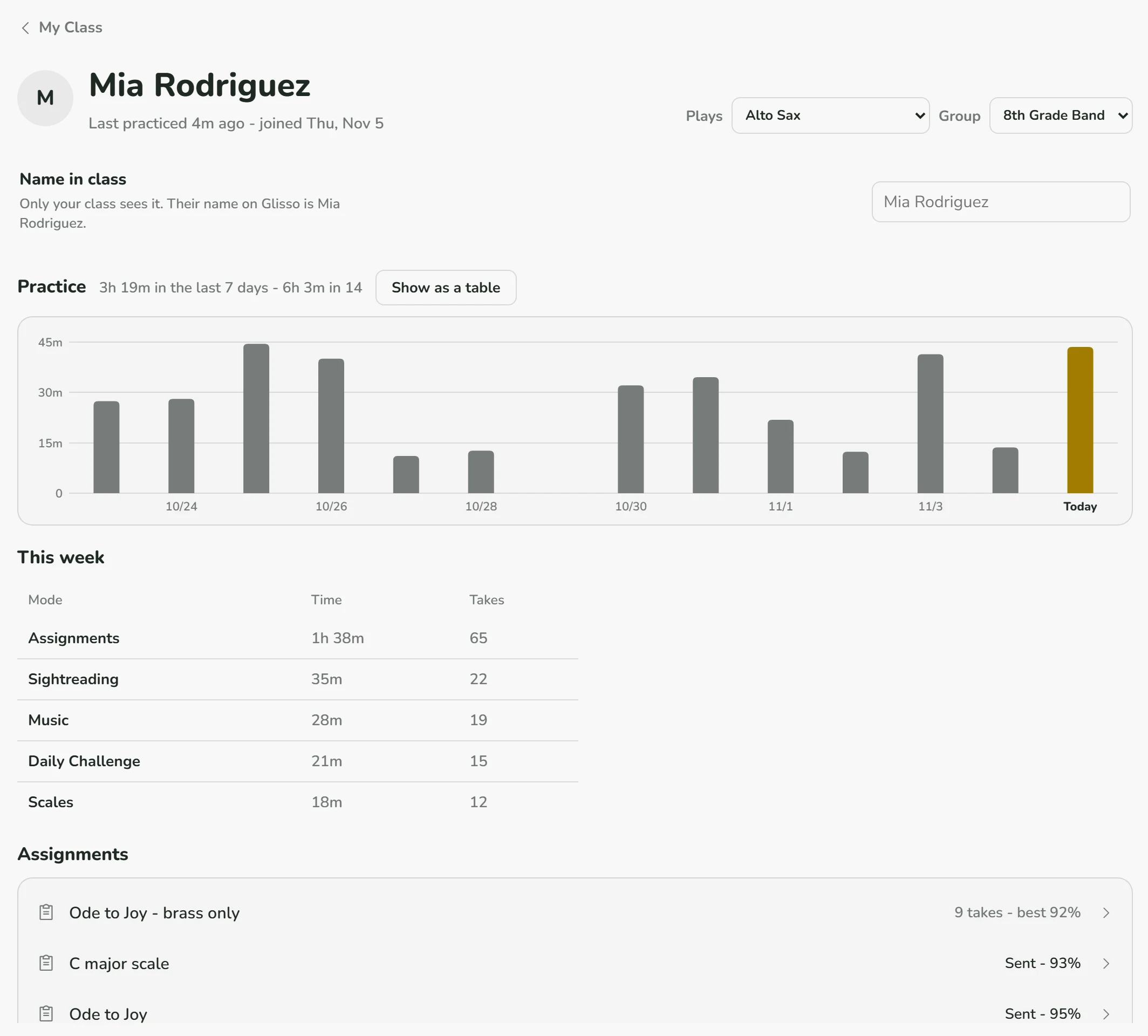
Open a student to see a chart of their practice over the last 14 days, and a table of this week's time and takes in each part of Glisso: assignments, sightreading, music, the Daily Challenge, scales, rhythm and flashcards. Their assignments are listed underneath with how far they got on each.
Practice time is counted the same way everywhere in Glisso. Each take starts a five-minute window, so the rest between takes counts, but an app left open with nothing played stops counting after five minutes.
From a student's page you can also set their instrument and group, give them a name that only your class sees, or remove them from the class.
Groups
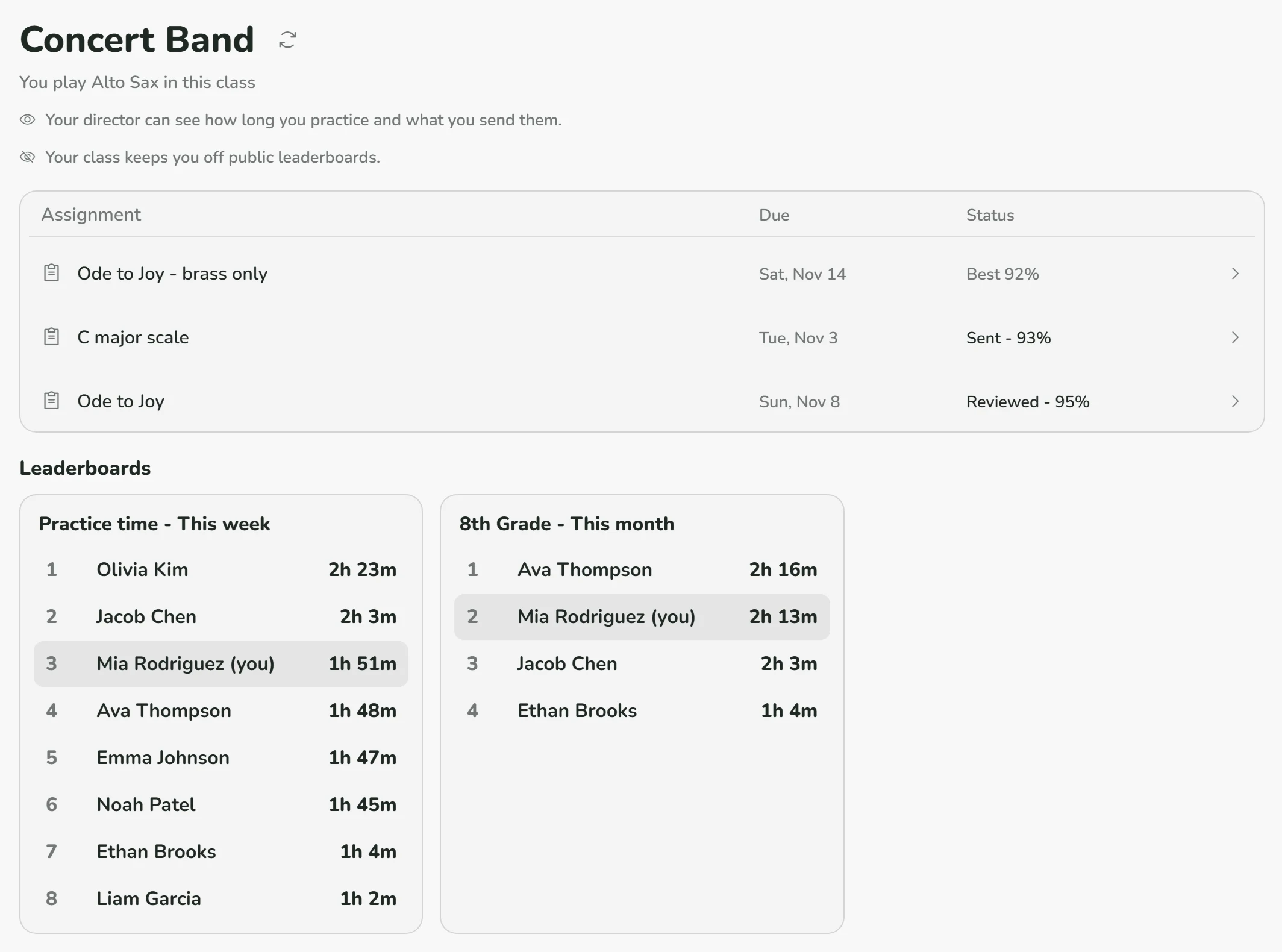
Groups split one class by grade or ensemble, such as 7th Grade Band and 8th Grade Band. You can make up to 20. Each group has its own invite link, so students land in the right group when they join. The class list can be filtered to one group, and a leaderboard can rank one group on its own.
Class leaderboards
Make up to 10 leaderboards that only your class can see. For each one, choose:
- What it ranks: practice time, Daily Challenges cleared, Daily Challenge tempo, Best Scale, Scale Rush, Circle of Fifths, or any of the six Flashcards runs.
- The period: today, this week, this month or all time.
- Who is on it: the whole class, or one group.
- What students see: the top 10, or everyone. With top 10, students below it see only their own place.
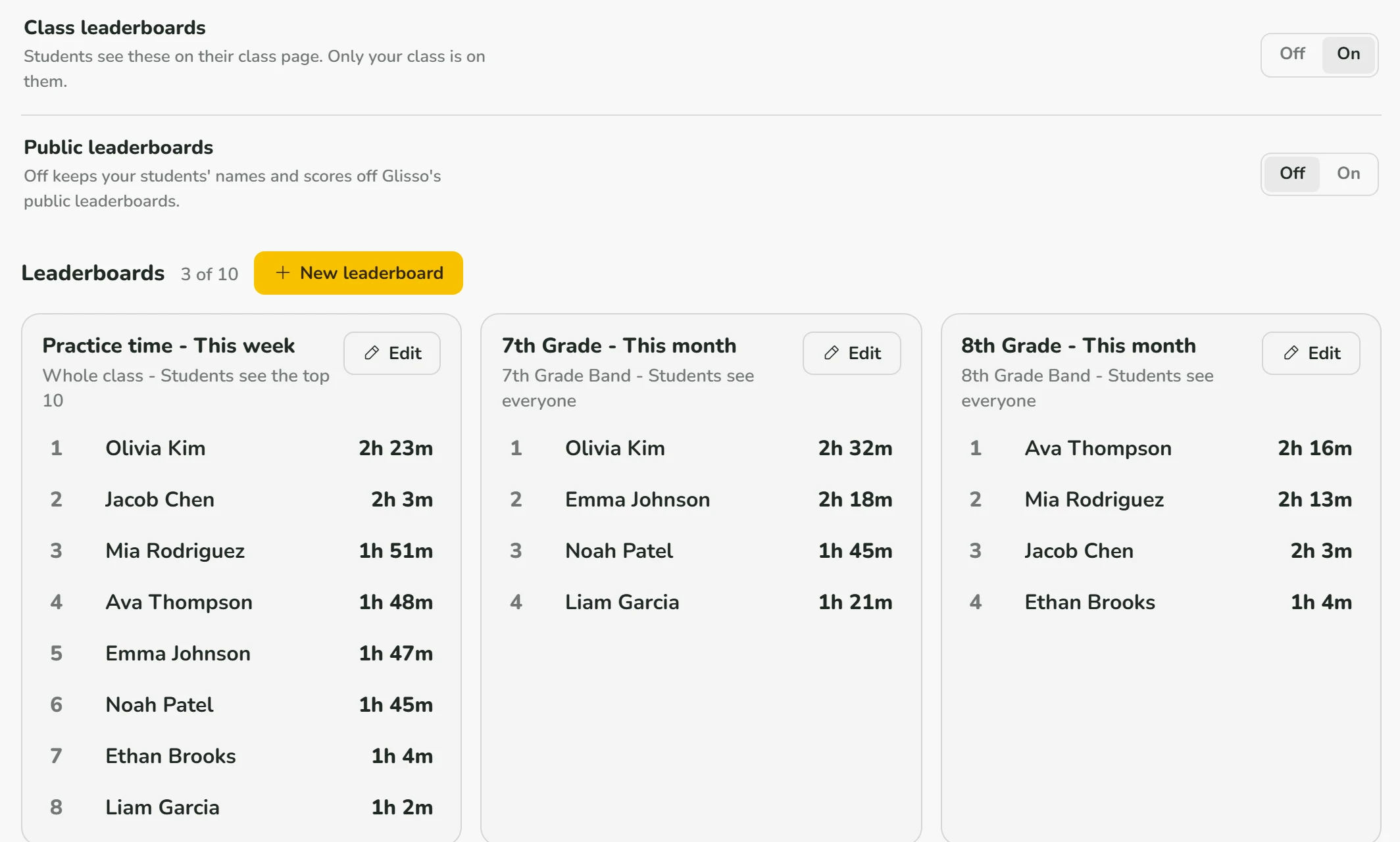
Students see their boards on their class page, with their own row marked.
Student privacy
- Off the public leaderboards. Students who join your class are taken off Glisso's public leaderboards. You can put the class back on them with one switch.
- Names in class. A name you give a student is shown only to your class. Their name on Glisso stays as it was.
- Recordings go to you. A recording is uploaded only when a student sends a take for an assignment. Only you can hear it, and it is deleted after a year. Microphone practice otherwise stays on the student's device.
- Students are told. Their class page says that you can see how long they practice and what they send you.
- No ads and no chat. There is no messaging between students.
Full details are in the Privacy Policy. For filtering, allowlisting and district paperwork, see Glisso for Schools.
What every student gets
Every student with a seat has Virtuoso for as long as they are in your class. That includes:
- Unlimited songs and rhythms in their library
- Unlimited sightreading
- The Clarke and Kopprasch study library, written for their instrument
- Full scores, recording downloads and custom themes
- Time Attack, Scale Rush, Circle of Fifths and every past Daily Challenge
Each one is described, with screenshots, on the Virtuoso page.
Buying seats
| Seats | Price | Billing |
|---|---|---|
| 10 or more students | $19 per student | Once a year until you cancel |
For 30 students that is $570 a year. Buy seats in the app: sign in, open My Class and press Buy class seats, or choose Directors on the Virtuoso screen. Pick how many students you have and pay by card through Stripe. Your class page and code are ready as soon as you have paid, and every seat is active the same day.
You can add or remove seats later from your class page. Each student needs their own free Glisso account to join. If your school needs a purchase order or an invoice, email [email protected].